
Heads up: Our Consumer and Cash Management Online Banking platforms are being combined into a single login experience. To complete this transition, online banking will be unavailable from Friday, September 18 at 10:00 p.m. through Sunday, September 20 at 9:00 a.m. Thank you for your patience and understanding as we work to enhance your online banking experience.
Eagle Financial Services, Inc. (EFSI), the parent company of Bank of Clarke, is pleased to share that it has entered into a definitive merger agreement with John Marshall Bancorp, Inc. (JMSB), the parent company of John Marshall Bank. The combination will unite two highly regarded Virginia community banking institutions.
Link to FAQs: https://bit.ly/4hjycDF
Important information regarding the new Business Online Banking platform.
*****USER ACTION IS REQUIRED*****
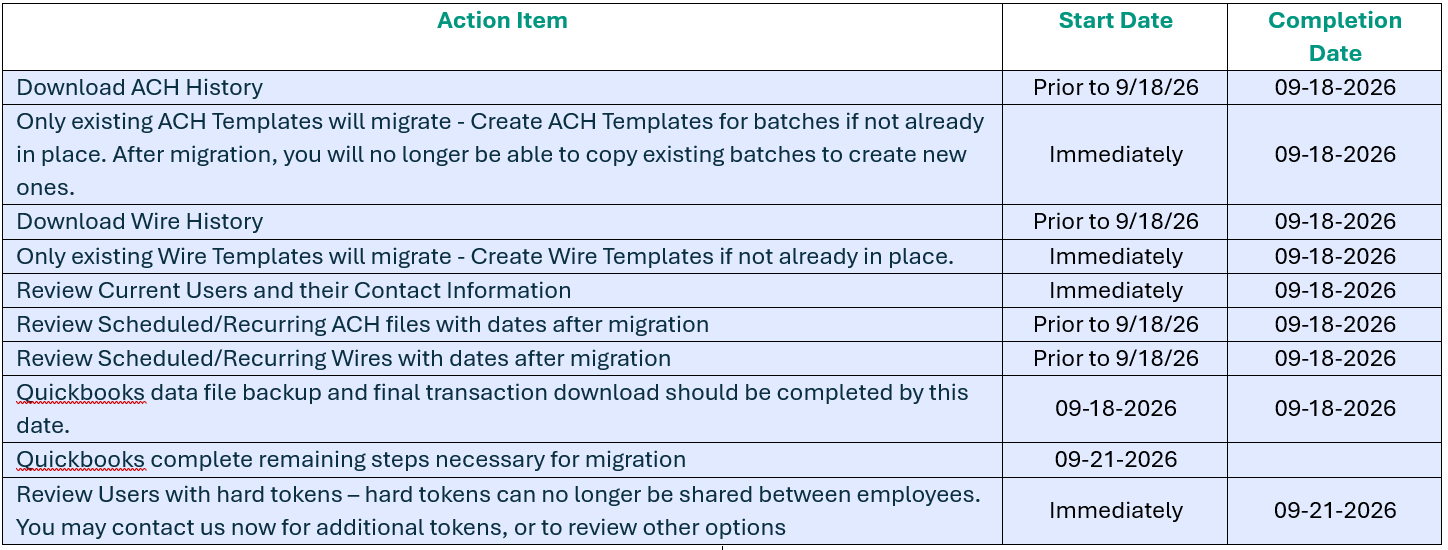
On September 21st, 2026, Bank of Clarke will launch a new Business Online Banking platform that delivers enhanced functionality and a more streamlined user experience. As part of this upgrade, your business should review the following information with all users prior to September 21st.
Cash Management Online banking will be placed in Read Only mode beginning at 6:00 PM Friday, September 18th until we enter production on Monday, September 21st.
Frequently Asked Questions
Universal Log in Portal and Universal App
- The new platform features a new single-sign-in portal for both Retail and Cash Management users, eliminating the need to click on a separate drop-down box to access Cash Management.
- The new platform features a new single-sign-in app for both Retail and Cash Management users, eliminating the need to have a separate app for your retail and business accounts. The app can be updated after migration and if you have both retail and business accounts, they can be combined to prevent the need for logging in with different credentials.
- Cash Management users can use the “Forgot Password?” link from the registration screen to reset their information if needed.
Current Online banking login credentials/New Online banking login credentials:
- Your current User ID and passwords are migrating. It is important to note that the security parameters for log in credentials on the new platform are different than our existing platform. Users will not be affected for 90 days after the migration. After 90 days, changes made to a profile may require the User ID or password to be updated.
- Changes to User IDs may interfere with Remote Deposit Capture, or Positive Pay access. Please contact the bank if changes are required and you have our Remote Deposit Capture or Positive Pay product.
- If you currently use a physical or soft token, you will be prompted during initial login to use it.
- Soft token users will be prompted to download and install a new digipass app. Iphone and Android users can scan the QR code provided or look for FI Digipass by Fiserv in the appropriate app store. Users will follow the onscreen prompts to complete activation.
- Physical tokens can no longer be shared between employees. You may contact us for additional tokens and assign them, or you may consider using soft tokens. Both can be updated prior to migration.
- For ACH and Wire processing, users will be required to enter the token information at both log in as well as processing. This is a change from the current system which only requires token at processing.
- Non-token users will be required to authenticate with a one-time verification code sent by text, voice call or email at initial log in and subsequent logins. Not all contact information may be available as a delivery method during initial login. Please select a delivery method that would allow you to complete the login. Once successfully logged in, you may update your contact information to a more preferred method under your Profile.
Account history will migrate and have a rolling 2 years available to view.
**New Service** Account Nicknames:
- Existing account nicknames will not migrate and will need to be re-established after migration. We encourage you to make note of your current account numbers and their corresponding nicknames. Nicknames can be updated in the new platform by going to Accounts > clicking on the current account name > Details > Change Account Nickname
- Users will now be able to change their account nicknames. Nicknames should only be updated by one employee as once a nickname is changed, that nickname applies to the account across all users no matter who changes it.
Review your current Users:
- Review your current list of online users: Administration > Employee Profile & Permissions = Inquire, Change or Delete.
- To see your list of current users, select Inquire Employee and submit. Users are displayed below.
- To update the contact information for a user, select Change Employee and submit. Click on the highlighted employee name to update their contact information such as email or phone. If you have the User’s mobile number, please update that prior to migration.
- To delete a User, select Delete Employee and submit. Click on the highlighted employee name, verify this is the User you want to delete, click Next, then Finish.
- The new Business Online banking portal will require that you make changes to your Quickbooks or Quicken software, please take action to ensure a smooth transition.
1stAction date = Friday, September 18, 2026
- A data file backup and final transaction download should be completed BEFORE 6:00 PM on this date. Please make sure to complete the final download before this date since transaction history may not be available after the migration.
2ndAction date = Monday, September 21, 2026
- This is the action date for the remaining steps from the conversion instructions. You will complete the deactivate/reactivate of your online banking connection to ensure that you get your current Quickbooks accounts set up with the new connection.
- Intuit aggregation services may be interrupted for up to 5 business days. Users are encouraged to download a QFX/QBO file during this outage.
- Additional information containing instructions will be provided in future correspondence, and via a dedicated Business Online Banking migration page on our website.
- Current limits will migrate to the new platform and no changes to deposit processing have been made.
Remote Deposit Capture can be found on the new platform under Deposits > Merchant Source Capture.
Changes to User IDs may affect the single sign on process in the new system.
Positive Pay:
- No changes to Positive Pay reviews have been made.
- Positive Pay Review can be found on the new platform under the Positive Pay label.
- Changes to User IDs may affect the single sign on process in the new system.
Internal Transfers:
- Scheduled or recurring transfers will migrate.
**New Service** CashFlow Central® enhanced Bill Pay:
- All users who are currently enrolled in Bill Pay will be enrolled in CashFlow Central.
- Payees will migrate from the current Bill Pay platform into CashFlow Central but may need to be assigned to another business if you have multiple companies tied to the profile.
- CashFlow Central uses a Real-Time Good Funds payment model and relies on instant payment rails such as The Clearing House, RTP or FedNow. This eliminates the clearing delays created using draft or single checks as forms of payments. Funds are verified and debited when the payment is processed.
- All packages include a pay with card option and Accounts Payable.
- Upgraded packages can include accounts receivable, customize and track invoices, syncs with accounting software, and automated invoice reminders.
- Clients will default with the base package which includes two active users and five payments. Users can review and upgrade to different packages based on the needs of their business.
ACH Processing:
|
Instructional Videos